Look back through a season of rides and you’ll see the same thing in all of them: some of them mattered more than others. The goal race, the club event, the group ride that went better than you expected, the commute you want to track separately. Until now, finding those rides meant remembering the date or scrolling until something looked familiar.
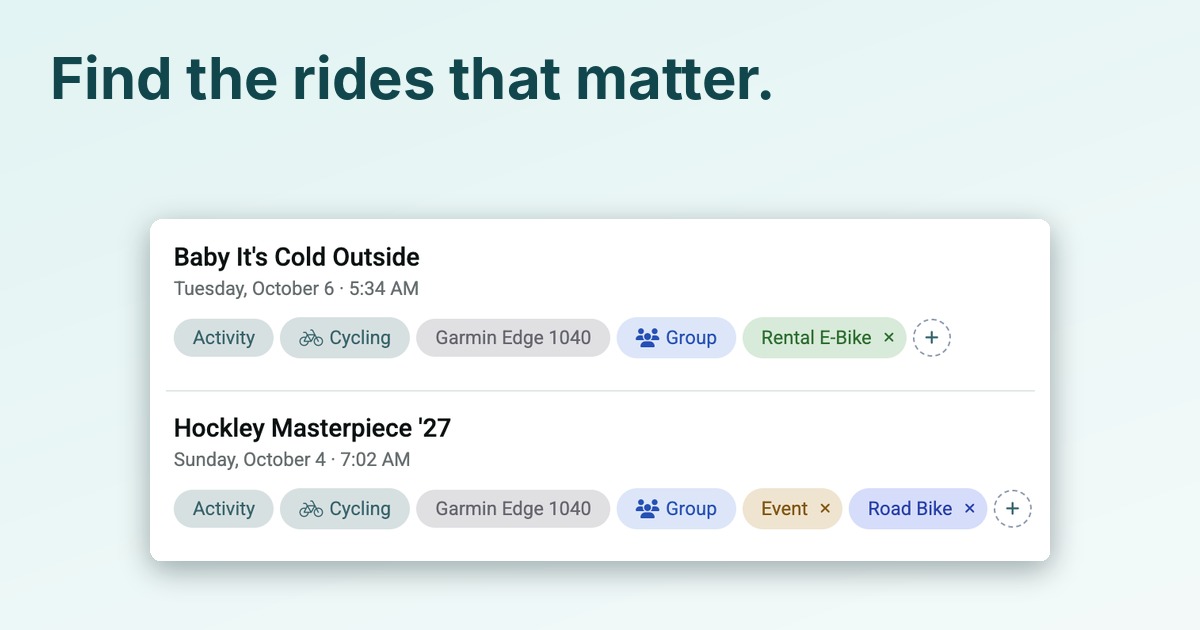
Activity tags fix that. Every activity can now carry tags, you choose what they are, and Xert uses the important ones to mark your season charts.
Already on Xert? Open your Activities dashboard.
Four Tags to Start With
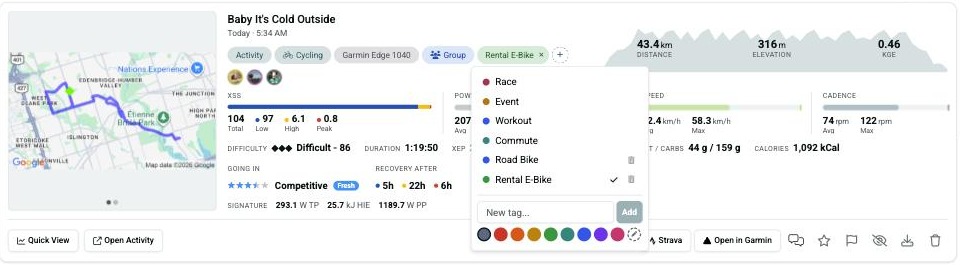
Every athlete starts with four standard tags: Race, Event, Workout and Commute, each with its own colour. Race is crimson, Event is amber, Workout is blue and Commute is teal. Open the tag menu on any activity card and they’re waiting for you, along with any custom tags you’ve made.
Make Your Own
Your training doesn’t fit four boxes, so it doesn’t have to. Type a name to create a custom tag (one for each of your bikes, the name of your club ride, or the e-bike you rented on holiday) and pick a colour from nine presets. If none of them suits you, the dashed pencil swatch opens a colour picker for any colour you like.
An activity can have up to 20 tags. If you try to add a name you already use, Xert warns you rather than creating a duplicate.
Find Your Rides Again
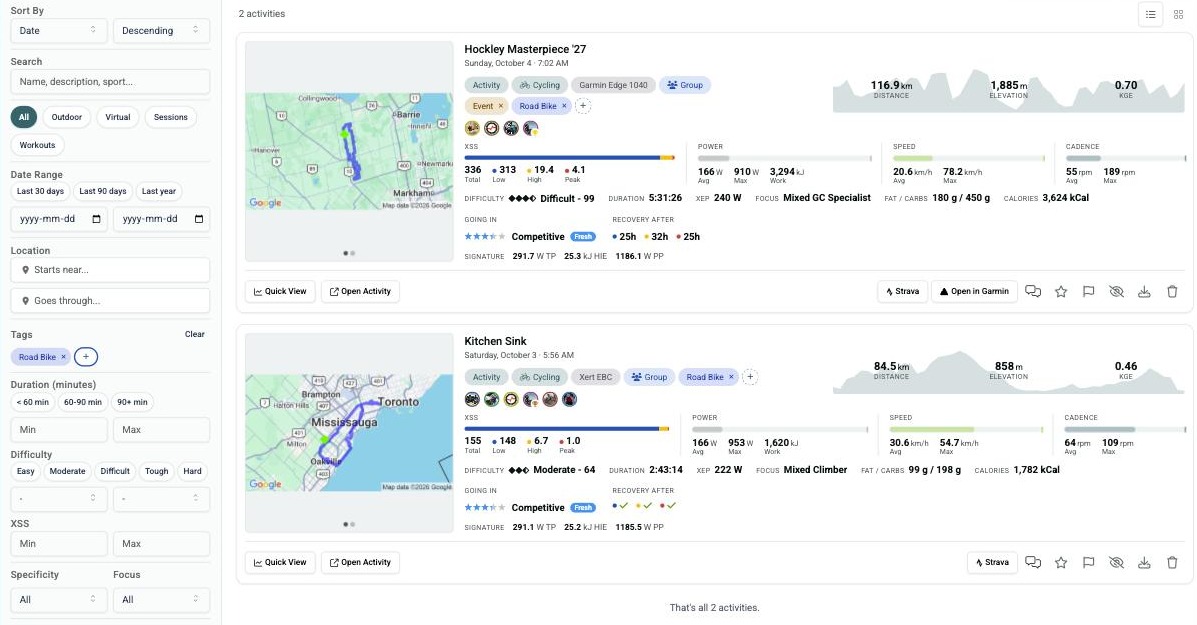
Tags earn their keep on the Activities dashboard. Use the tag filter to pick one or more tags, and the dashboard shows the rides that have any of them. Choose Race and you have your racing history in one scroll. Choose a bike’s tag and you see every ride on that bike.
Tag a Whole Batch at Once
Tagging one ride at a time is fine for today’s ride. Tagging a season’s worth is not. Open the Table view under Activities and you’ll find a Tags button in the toolbar. The Tags column is off by default, so switch it on under Edit Columns to see every activity’s tags at a glance.
Tick the activities you want, open the Tags button, and apply or remove a tag on all of them in one go. The menu tells you where things stand: a tick means every selected activity has the tag, a dash means only some do, and an empty box means none do.
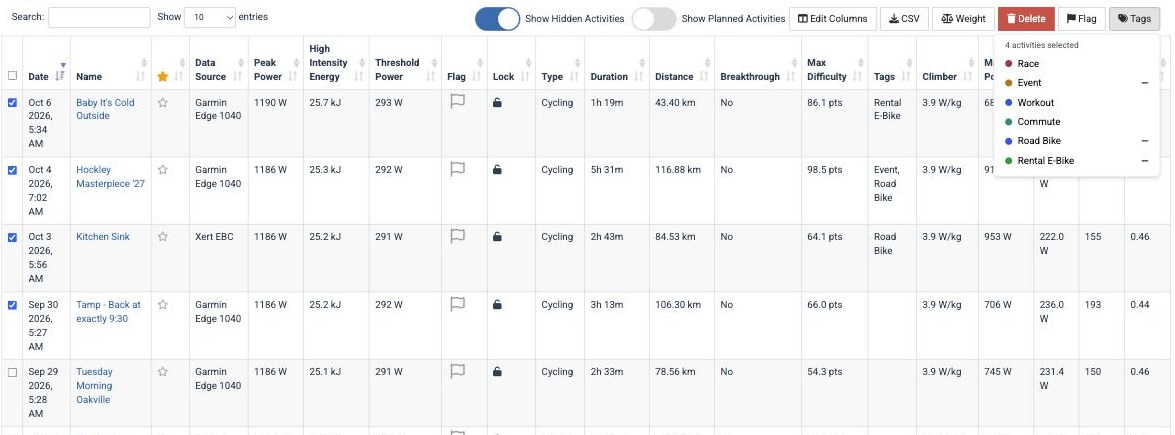
It’s the quickest way to go back through last season and mark every race.
Your Races and Events Show Up on Your Season
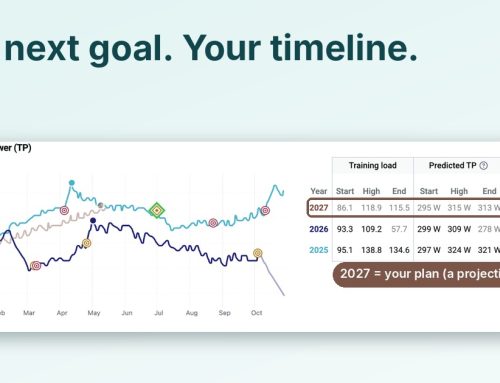
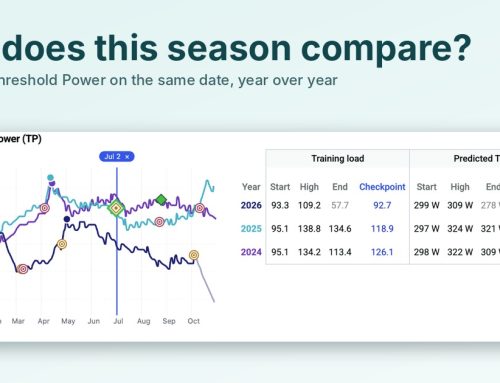
Race and Event tags do more than label. They draw a target icon on your charts: crimson for a Race, amber for an Event. On My Seasons, you can see where each one fell in the year and what your training load and fitness signature were doing when you got there. A diamond with a target inside marks a breakthrough that happened on a tagged activity. The same icons appear on the Progression tab’s breakthrough strip.
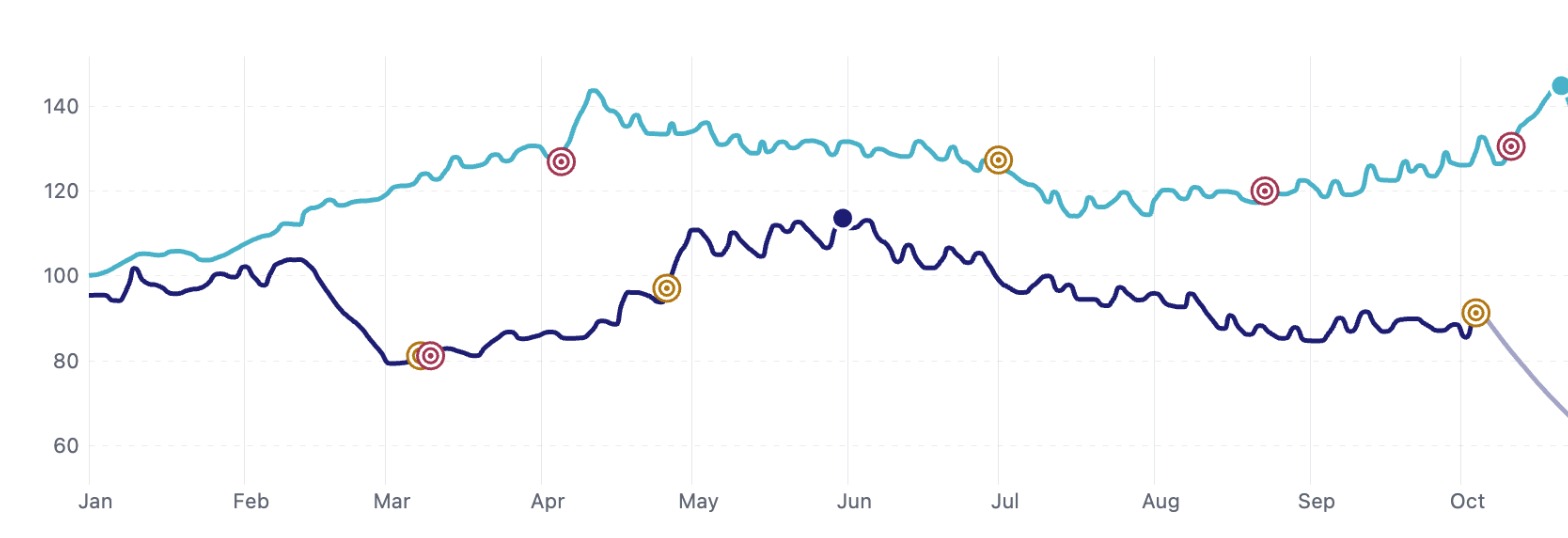
That makes it easy to ask the questions that matter. Did the load build before the goal race? Where did the fitness signature peak, and how close was it to race day? How does this year’s build compare with last year’s? Our My Seasons article shows how to compare seasons side by side.
Coaches See Them Too
If you coach athletes or belong to a squad, the tags you see on an athlete’s activities are read-only, so you can follow their key rides without changing anything.
Try It Yourself
- Open Activities and pick a recent race or key event.
- Open its tag menu and apply Race or Event.
- Create a custom tag for something you ride often, and choose a colour.
- Open the Table view, switch on the Tags column under Edit Columns, then tick several rides and use the Tags button to tag them together.
- Go to My Seasons and look for your target icons.
New to Xert? Start your 30-day free trial at www.xertonline.com.