
Training Availability in Xert lets you personalize your training plan to fit your schedule. Whether you’re juggling work, family, or other commitments, you can specify when you’re available to train and for how long – and Forecast AI (XFAI) will automatically adapt your plan around it. Your availability is also considered by the Xert Adaptive Training Advisor (XATA), alongside your current XSS Deficit or surplus, to recommend the right amount of training within your available time.
How it works
Xert first looks at your historical training habits – when you typically train and for how long – and uses that to inform your plan. For example:
- If you usually do short weekday rides and long weekend rides, your training plan will reflect that pattern.
- However, you can override your default schedule by manually adjusting your availability – either for individual days or recurring weekly patterns.
Let’s walk through how to update your Training Availability.
Set Weekly Availability (from Profile Settings)
- Go to Profile Settings.
- Under the General tab, scroll to Weekly Availability.
- Customize your availability for each day of the week:
- Time of day
- Duration
- Availability (Available / Unavailable)
- Fixed vs. Flexible (more below)

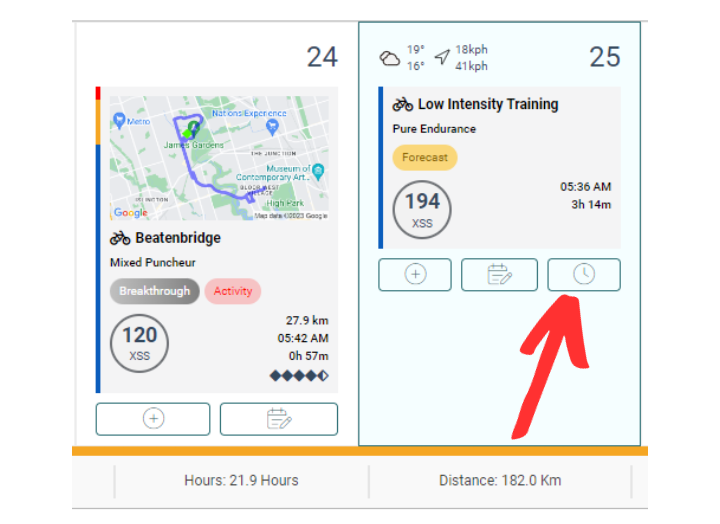
Adjust Specific Days (from the Fitness Planner)
- Open the Fitness Planner.
- Click on the day you want to modify, if on desktop/laptop. No hover necessary on mobile view.
- Select the Clock icon to open the Training Availability panel.
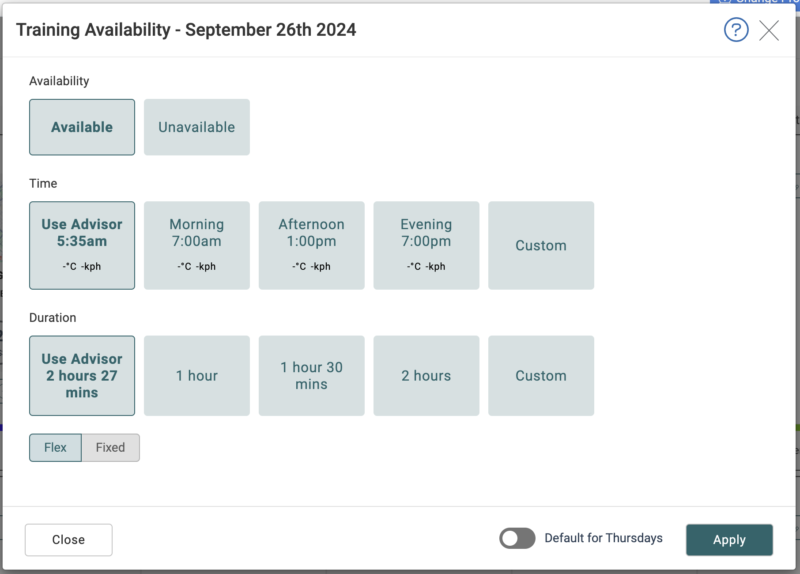
Here, you can configure:
- Availability: Mark yourself as Available or Unavailable for training that day.
- Time: Specify the time of day you plan to train (morning vs. evening can affect training readiness and recommendations).
- Duration: Set how much time you’re available to train.
- Use Advisor uses your typical training duration for that day.
- Fixed vs. Flexible:
- Fixed: Locks your availability to the selected duration throughout the plan.
- Flexible: Allows Forecast AI to increase training time on that day as training demands increase over time.
- Apply Weekly: Enable the “Default for [day of the week]” toggle if you want this setting to apply to all matching days in your plan.
💡 Tip: The duration of your actual workout or activity may differ from your set availability. Riding at a higher intensity can reduce the time needed to achieve your XSS target, while easier efforts may require more time.
Update Your Plan (Adapt Forecast)

After updating your availability:
- Click Adapt Forecast.
- Forecast AI will rebuild your training plan to match your updated schedule.
⚠️ Keep in mind: If you mark too many days as Unavailable, Forecast AI may be unable to meet your training goals.
Last Updated: 2 September 2025